Notes

how to reverse socket

How to Use a Reverse Socket?


Figure.1 – Layout of the reverse socket


1. Overview of Reverse Socket
A reverse socket is a recovery tool to fix a suface mounted PLCC32 Flashrom without Reworks-tool.
You can fix a suface mounted PLCC32 Flashrom without soldering(or simple soldering with basic tool).
Reverse socket has two mode and three usage according to target application.
Definitions:

· Primary flashrom : BIOS flashrom that soldered to motherboard

· Secondary flashrom : A spare flashrom to boot with reverse socket

· Flashrom Swap : Transferring a Primary flashrom interface to Secondary flashrom

· Pin bypass : to disconnect the circuit between existing components and creating a necessary connection

· Pin cutting : to cut a leg of Primary flashrom, it makes a new connection


2. The principle of Reverse Socket
Question : 
Is it possible to update a Primary flashrom that is direct connected to any programmer?

Answer :   No, it is impossible.

As shown below, soldered flashrom is connected to many other unknown device in motherboard.
So, when programmer tries to handle a flashrom, BUS fall in unknown status by these unknown devices.


Figure.2 Simple connecting structure of BIOS Flashrom and Motherboard

Figure.3 concept – When flashrom was connected directly to programmer

without disconnecting from the motherboard, unintended connection is created.

At worst case, if power is overloaded, motherboad, power unit, programmer, flashrom and on board the various
components (CPU, memory, VGA, Harddisk…) can be breaked.
So, you should never ever try this.
We need a new method, and one of simple method is adding of new flashrom.

Figure.4 concept -  adding of new flashrom, Red-line is reverse socket.


At this case, we have to make the Primary flashrom disable before attaching the Secondary flashrom.
So, reverse socket must have a function that can make Primary flashrom disable.
In this way, motherboard can boot to OS by Secondary flashrom.
After booting, we have to disable Secondary flashrom and enable Primary flashrom in POWER-ON status.
In this status, we can update(or fix) Primary flashrom with BIOS update tool of motherboard manufacture.
(BIOS update tool : AWDFLASH, WINFLASH, PHLASH,AMIFAUTO, FLASH85x, AFUDOS, AFUWIN, UNIFLASH…)
As a result, you can make a status to fix a BIOS with reverse socket.
And you should understand reverse socket has two functions.
· to disable/ebable Primary flashrom and Secondary flashrom.
· to make a connection between Primary flashrom and Secondary flashrom without soldering.
3. Type of Reverse Socket 


3.1. FWH/LPC recovery : use when Primary flashrom has FWH / LPC interface
-> See usage.1 and usage.2
feature of usage.1 :  depending on motherboard design, does not require a soldering operations.
feature of usage.2 :  not depending on motherboard design, needs a Pin-cutting operations.
Rarely, depending on the type of flash ROM may need simple soldering operations.

Figure.5 FWH/LPC mode of reverse socket


3.2. Legacy Flashrom recovery : use when Primary flashrom has legacy interface
-> See usage.3
feature -  Needs a Pin-bypass operations.
Pin-bypass operations just needs a simple soldering tool.

Figure.6 Legacy mode of reverse socket
※ FWH/LPC mode and Legacy mode can be switched by replacing components.
See positions of four chip resistance of left side.


4. Using a Reverse Socket  

4.1. usage.1

Parts needed : FWH / LPC mode reverse socket, A secondary flashrom that is same(or compatible) with the Primary flashrom

Conditions of Use :

a. Use only with FWH/LPC flashrom (Wrong usage can break device)

b. Measure resistance next 4 pin(ID0 to ID4) and GND of Primary flashrom.
If all value are under 600Ω, goto usage.2
Any value are over 600Ω, you can go with usage.1


Figure.7 compatibility test
Usage :

a. Write a correct BIOS to Secondary flashrom.
b. Insert Secondary flashrom to Top socket of Reverse socket

Figure.8  Insert Secondary flashrom to Top socket of Reverse socket


c. Attach Reverse scoket to Primary flashrom on motherboard.
(Warning : Primary flashrom and Secondary flashrom have same direction.)

Figure.9  Attach Reverse scoket to Primary flashrom on motherboard

Figure.10  picture attached reverse socket to the primary flashrom
d. to enter into the OS by booting the motherboard.

(recommended to copy a BIOS update tool and BIOS file to harddisk before boot)

e. OS is fully booted and ready to run the BIOS update utility and
Remove the reverse socket from Primary flashrom.

Figure.11  Remove the reverse socket from Primary flashrom after boot

f.  Recover a Primary flashrom by BIOS update tool.

g. Reboot the motherboard and make sure the repair properly.

4.2. usage.2

Parts needed : FWH / LPC mode reverse socket, A secondary flashrom that is same(or compatible) with the Primary flashrom
Tools needed : small paper knife, pincette or solder iron.

Conditions of Use: 

a. Use only with FWH/LPC flashrom (Wrong usage can break device)vl

b. Necessary only :  ’usage.1′ is not working. see usage.1.

How to use:

a. Pin-cutting must be applied to one pin of next four pin of Primary flashrom.

Figure.12 How to do Pin-cutting

b. Write a correct BIOS to Secondary flashrom.

c. Insert Secondary flashrom to Top socket of Reverse socket.

d. Attach Reverse scoket to Primary flashrom on motherboard.
(Warning : Primary flashrom and Secondary flashrom have same direction.
Recommended to measure a isolation between the cutted pin and GND.)

e. to enter into the OS by booting the motherboard.

(recommended to copy a BIOS update tool and BIOS file to harddisk before boot)
f. OS is fully booted and ready to run the BIOS update utility and
Remove the reverse socket from Primary flashrom.
g.  Recover a Primary flashrom by BIOS update tool.
h. Reboot the motherboard and make sure the repair properly.

e. If the BIOS tool reports ‘updating was success’,
but motherborad does not boot, recover cutted pin by soldering.
4.3. usage.3
Parts needed : Legacy flashrom mode reverse socket, A secondary flashrom that is same(or compatible) with the Primary flashrom

Tools needed : small paper knife, pincette and solder iron.

Conditions of Use:

a. Use only with Legacy flashrom flashrom (Wrong usage can break device)

b. Pin-bypass operations and recovery operations are required.

How to use :

a. Pin-cutting must be applied to one pin of Primary flashrom in next illustration.

And remained pattern must be connected to CS point on reverse socket.
(Warning : each soldering point must be isolated electronically from near pin.)

Figure.13 How to do Pin-bypass

b. Put jumper of reverse socket to 2-3 position.

c. Write a correct BIOS to Secondary flashrom.

d. Insert Secondary flashrom to Top socket of Reverse socket
e. Attach Reverse scoket to Primary flashrom on motherboard.
(Warning : Primary flashrom and Secondary flashrom have same direction.)
Recommended to measure a isolation between the CS point and number 1-pin of jumper)
f. to enter into the OS by booting the motherboard.
(Recommended to copy a BIOS update tool and BIOS file to harddisk before boot.
If motherboard can’t boot, check a connection of reverse socket or BIOS file.)

g. OS is fully booted and ready to run the BIOS update utility and
Move jumper to 1-2 position.
h.  Recover a Primary flashrom by BIOS update tool.
i. Reboot the motherboard and make sure the repair properly.
j. If motherboard can boot, recover cutted pin with soldering.

laptop battery tester

Today , in this article we would introduce you about laptop battery tester . For more details , call 09971004998.
laptop batery tester

Motorola V3 Power failure solutions

Nokia UEM ASIC type Overview

In this article , Mr. Amit of CHIPTRONIKS will discuss the  NOKIA UEM ASIC Type

ASIC type 2

Nokia 1100 Nokia 1101 Nokia 1110 Nokia 12i
Nokia 1600 Nokia 2300 Nokia 2600 Nokia 2650
Nokia 2651 Nokia 2652 Nokia 3100 Nokia 3105
Nokia 3108 Nokia 3120 Nokia 3125 Nokia 3128
Nokia 3129 Nokia 3152 Nokia 3155 Nokia 3155i
Nokia 3200 Nokia 3220 Nokia 3300 Nokia 3320
Nokia 3321 Nokia 3360 Nokia 3361 Nokia 3510
Nokia 3510i Nokia 3520 Nokia 3530 Nokia 3560
Nokia 3590 Nokia 3595 Nokia 3595i Nokia 5070
Nokia 5100 Nokia 5140 Nokia 5140i Nokia 6020
Nokia 6021 Nokia 6030 Nokia 6060 Nokia 6061
Nokia 610 Nokia 6100 Nokia 6101 Nokia 6102
Nokia 6108 Nokia 616 Nokia 6200 Nokia 6220
Nokia 6225 Nokia 6225i Nokia 6235 Nokia 6235i
Nokia 6255 Nokia 6255i Nokia 6310 Nokia 6310i
Nokia 6340 Nokia 6340i Nokia 6360 Nokia 6500
Nokia 6510 Nokia 6560 Nokia 6590 Nokia 6590i
Nokia 6610 Nokia 6610i Nokia 6620 Nokia 6800
Nokia 6810 Nokia 6820 Nokia 6820i Nokia 6822
Nokia 7200 Nokia 7210 Nokia 7250 Nokia 7250i
Nokia 7260 Nokia 810 Nokia 8310 Nokia 8390
Nokia 8910 Nokia 8910i Nokia 9300 Nokia 9300i
Nokia 9500

ASIC type 5
Nokia 3230 Nokia 3600 Nokia 3620 Nokia 3650
Nokia 3660 Nokia 6260 Nokia 6600 Nokia 6670
Nokia 7610 Nokia 7650 Nokia N-Gage Nokia Remote Camera

ASIC type 6
Nokia 6170 Nokia 6230 Nokia 6230i Nokia 7270
Nokia 7280 Nokia 8800 Nokia 8801

ASIC type 7
Nokia 6650 Nokia 6651 Nokia 7600

ASIC type 11 (B)
Nokia 2310 Nokia 2610 Nokia 2626

Nokia mobile phones processors
model: type: processor type: architecture: frequency: additional:

Nokia 3230 RM-51 32-bit RISC CPU ARM-9 123 MHz

Nokia 3600 NHM-10 32-bit RISC CPU ARM-9 104 MHz

Nokia 3620 NHM-10(X) 32-bit RISC CPU ARM-9 104 MHz

Nokia 3650 NHL-8 32-bit RISC CPU ARM-9 104 MHz

Nokia 3660 NHL-8X 32-bit RISC CPU ARM-9 104 MHz

Nokia 5700 RM-230 Freescale MXC-300-xx ARM-11 369 MHz

Nokia 6120 Freescale MXC-300-xx ARM-11 369 MHz

Nokia 6260 RM-25 32-bit RISC CPU ARM-9 123 MHz

Nokia 6290 RM-176 Freescale MXC-300-xx ARM-11 369 MHz

Nokia 6600 NHL-10 32-bit RISC CPU ARM-9 104 MHz

Nokia 6620 NHL-12 32-bit RISC CPU ARM-9 150 MHz

Nokia 6630 RM-1 TI OMAP 1710 ARM-926 220 MHz + RAP.. cellular CPU

Nokia 6670 RH-67 32-bit RISC CPU ARM-9 123 MHz

Nokia 6670 RH-68 32-bit RISC CPU ARM-9 123 MHz

Nokia 6680 RM-36 TI OMAP 1710 ARM-926 220 MHz + RAP.. cellular CPU

Nokia 6681 RM-57 TI OMAP 1710 ARM-926 220 MHz + RAP.. cellular CPU

Nokia 6682 RM-58 TI OMAP 1710 ARM-926 220 MHz + RAP.. cellular CPU

Nokia 7610 RM-51 32-bit RISC CPU ARM-9 123 MHz

Nokia 7610 RH-52 32-bit RISC CPU ARM-9 123 MHz

Nokia 7650 NHL-2(NA) 32-bit RISC CPU ARM-9 104 MHz

Nokia 770 SU-18 TI OMAP 1710 ARM-926 220 MHz

Nokia 7710 RM-12 32-bit RISC CPU ARM-9 150 MHz

Nokia 9210 RAE-3(N) 32-bit RISC CPU ARM-9 52 MHz

Nokia 9210 RAE-3(N) 32-bit RISC CPU ARM-9 52 MHz

Nokia 9210i RAE-5(N) 32-bit RISC CPU ARM-9 52 MHz

Nokia 9290 RAB-3(N) 32-bit RISC CPU ARM-9 52 MHz

Nokia 9300 RAE-6 TI OMAP 1510 ARM-925 150 MHz

Nokia 9300 RA-4 TI OMAP 1510 ARM-925 150 MHz

Nokia 9300i RA-8 TI OMAP 1510 ARM-925 150 MHz

Nokia 9500 RA-2 TI OMAP 1510 ARM-925 150 MHz

Nokia 9500 RA-3 TI OMAP 1510 ARM-925 150 MHz

Nokia E50 RM-171 TI OMAP 1710 ARM-926 220 MHz + RAP.. cellular CPU

Nokia E50 RM-170 TI OMAP 1710 ARM-926 220 MHz + RAP.. cellular CPU

Nokia E60 RM-49 TI OMAP 1710 ARM-926 220 MHz + RAP.. cellular CPU

Nokia E61 RM-89 TI OMAP 1710 ARM-926 220 MHz + RAP.. cellular CPU

Nokia E62 RM-88 TI OMAP 1710 ARM-926 220 MHz + RAP.. cellular CPU

Nokia E62 RM-88A TI OMAP 1710 ARM-926 220 MHz + RAP.. cellular CPU

Nokia E70 RM-10 TI OMAP 1710 ARM-926 220 MHz + RAP.. cellular CPU

Nokia E70 RM-24 TI OMAP 1710 ARM-926 220 MHz + RAP.. cellular CPU

Nokia E90 RA-6 TI OMAP 2420 ARM-11 330 MHz + RAP.. cellular CPU

Nokia E90 RA-7 TI OMAP 2420 ARM-11 330 MHz + RAP.. cellular CPU

Nokia N-Gage NEM-4 32-bit RISC CPU ARM-9 104 MHz

Nokia N-Gage RH-29 32-bit RISC CPU ARM-9 104 MHz

Nokia N-Gage RH-47 32-bit RISC CPU ARM-9 104 MHz

Nokia N70 RM-84 TI OMAP 1710 ARM-926 220 MHz + RAP.. cellular CPU

Nokia N70 RM-99 TI OMAP 1710 ARM-926 220 MHz + RAP.. cellular CPU

Nokia N71 RM-67 TI OMAP 1710 ARM-926 220 MHz + RAP.. cellular CPU

Nokia N71 RM-112 TI OMAP 1710 ARM-926 220 MHz + RAP.. cellular CPU

Nokia N72 RM-180 TI OMAP 1710 ARM-926 220 MHz + RAP.. cellular CPU

Nokia N73 RM-132 TI OMAP 1710 ARM-926 220 MHz + RAP.. cellular CPU

Nokia N73 RM-133 TI OMAP 1710 ARM-926 220 MHz + RAP.. cellular CPU

Nokia N75 RM-128 TI OMAP 1710 ARM-926 220 MHz + RAP.. cellular CPU

Nokia N76 RM-135 Freescale MXC-300-xx ARM-11 369 MHz

Nokia N77 RM-194 Freescale MXC-300-xx ARM-11 369 MHz

Nokia N77 Freescale MXC-300-xx ARM-11 369 MHz

Nokia N77 RM-194 Freescale MXC-300-xx ARM-11 369 MHz

Nokia N80 RM-92 TI OMAP 1710 ARM-926 220 MHz + RAP.. cellular CPU

Nokia N80 RM-91 TI OMAP 1710 ARM-926 220 MHz + RAP.. cellular CPU

Nokia N90 RM-42 TI OMAP 1710 ARM-926 220 MHz + RAP.. cellular CPU

Nokia N91 RM-43 TI OMAP 1710 ARM-926 220 MHz + RAP.. cellular CPU

Nokia N91 RM-158 TI OMAP 1710 ARM-926 220 MHz + RAP.. cellular CPU

Nokia N91 RM-158 TI OMAP 1710 ARM-926 220 MHz + RAP.. cellular CPU

Nokia N91 RM-43 TI OMAP 1710 ARM-926 220 MHz + RAP.. cellular CPU

Nokia N92 RM-100 TI OMAP 1710 ARM-926 220 MHz + RAP.. cellular CPU

Nokia N92 RM-101 TI OMAP 1710 ARM-926 220 MHz + RAP.. cellular CPU

Nokia N93 RM-153 TI OMAP 2420 ARM-11 330 MHz + RAP.. cellular CPU

Nokia N93 RM-55 TI OMAP 2420 ARM-11 330 MHz + RAP.. cellular CPU

Nokia N93i RM-156 TI OMAP 2420 ARM-11 330 MHz + RAP.. cellular CPU

Nokia N93i RM-157 TI OMAP 2420 ARM-11 330 MHz + RAP.. cellular CPU

Nokia N95 RM-159 TI OMAP 2420 ARM-11 330 MHz + RAP.. cellular CPU

Nokia N95 RM-245 TI OMAP 2420 ARM-11 330 MHz + RAP.. cellular CPU

hp error codes in printer

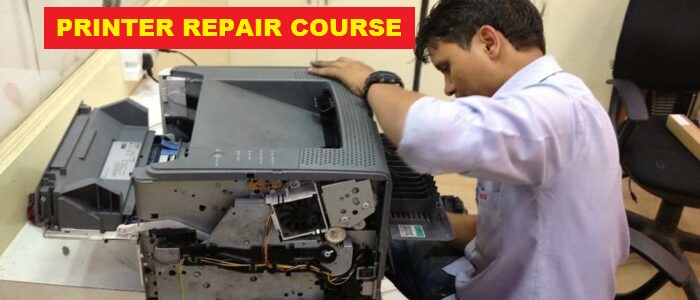
In this article , Mr . Andrew of CHIPTRONIKS  will discuss the error codes commonly occouring in HP printers. For more details , look to our printer repairing course

HP Printer Error Codes

Error 02 Warming up
 Turn printer off. Unplug I/O cable from rear of printer. Power up printer and see if it goes to ready. If printer goes to ready, the problem could be a driver issue, a bad I/O port in the computer or a bad I/O cable. If the printer still stays in 02 warm up, replace the formatter board.

Error 11 Paper Out
 Check paper tray for paper. Make sure it is seated properly.
 Check the tray size actuating tabs on the paper tray for damage. Check to see if the actuators they contact aren’t bent. The micro-switches they actuate could be defective or misaligned. Manually depress the actuators and listen for a click.
 Check that the paper sensor arm isn’t stuck or broken.
 Paper Control Sensor PCA is defective.

Error 12 Printer Open no EP cartridge
 Check that the toner cartridge is installed.
 Check that the top cover is firmly closed.
 On HP II/IID/III/IIID printers this error is usually caused by a bad DC power supply.
 On HP IIP/IIP+/IIIP printers the primary cause is the density adjusting PCA. There is a slight possibility of it being a bad fan. There is also a slight possibility of the tab on the fuser access door above the MP tray breaking off and causing the error. If the fan starts to run, quits and you notice a burning odor, the scanner motor has failed and needs to be replaced. The problem can also be caused by a defective drum shutter on the toner cartridge.
 On the 4/4M/4+/4M+ the tab on the top cover that actuates the door interlock could be broken.

Error 13 Paper Jam
 Paper jams can occur in 3 places: Entry, registration and exit.
 If the paper isn’t picking up out of the paper tray, visually inspect the pickup roller. If it looks shiny, replace it. You should also replace the separation pad as they work together. On the 4L/4P/5P/6P the pickup roller has a plastic shaft that breaks. You’ll have to replace the whole pickup assembly. This requires major disassembly of the printer.
 If you have an HP 4/4+/5 with an optional 500 sheet feeder that’s jamming, check the balance knob adjustment. Center it with a full ream of paper for proper operation.
 If the paper is jamming at registration or anywhere between pickup and exit it could be a number of things. Check the paper path for torn bits of paper or label residue. On the II/III series, remove the metal registration guide plate (2 screws) and check underneath it. If the pickup rollers are moderately worn, the paper will stop just short of the registration roller. On the 4L/4P/5P/6P remove the screw holding the oblique roller assembly (Inside front of printer) and pull out and inspect the assembly and the area under it. On the HP 4/4+/5 pivot up the metal plate and check underneath it. Check the roller assembly on the left side for torn scraps of paper (a flashlight or torch is necessary).
 Make sure paper cassettes are firmly seated, corner tabs aren’t bent. Some trays have lifting springs that could pop out if tray has been dropped.
 On HP IIP/IIP+/IIIP printers if the paper scrunches up at the toner cartridge you’ll need our Inside Accordion Jam Repair Kit.
 Check your software settings in the program you are attempting to print from. Do you have the correct paper size specified? If you have a different paper size than what is in the tray, you’ll get a paper jam.
 Exit jams are frequently caused by exit sensors. These sensors are typically mounted on the fuser assembly or adjacent to it. They are plastic arms that block and unblock an optical sensor. The arms can get stuck or knocked out of place when clearing paper jams. The optical sensors can also get dirt blocking the photo cell. Clean the sensor and check for free movement and proper installation of the sensor arms.
 On HP II/III series exit jams are mostly caused by worn gears. The best way to troubleshoot this is to defeat the door interlock (see door interlock photo on troubleshooting page). Press down on the arm on the top right of the fuser. Initiate a test page. While holding down the arm, press one of the metal cartridge detect switches just below the door interlock. Watch the movement of the gears. You will get a 51 error because the door is open. Recycle power to get rid of error. There is an arm gear on the lower right of the fuser that can shed teeth. There is also a 14 tooth gear below the large gear on top of the fuser. You can also manually rotate the large gear and check for binding or crunching. If that happens, then replace the 14 tooth gear. On the door, there are some delivery coupler gears that mate with the fuser and drive the exit roller. Check the gears for excessive wear. Replace if necessary. If the paper gets almost all the way out and jams, replace the exit roller or the exit roller assembly. If the error occurs after fuser replacement, check and see if the connector on the left of the fuser is properly mated with the one in the printer.
 On HP IIP/IIP+/IIIP printers if the paper has accordion folds on the bottom and jams on exit, order our Top Output Accordion Jam Repair Kit.
 On HP 4/4+/5 printers the most common cause of exit jams is the exit assembly.
Exit jams in the fuser can be caused by a broken fuser drive gear or a broken gear on the fuser. Remove the fuser and check the gear inside the printer for broken teeth. Manually turn the gears on the fuser and check for smooth operation. Check the paper exit sensor arm for proper mounting and free movement.
 Check to make sure the rear door is closed on the printer. Open doors can cause 13 paper jam indications.
 On the 5L/6L check the registration sensor arm below the pickup roller. Also check the exit sensor arm (bottom center of the fuser). These arms frequently get stuck or dislodged clearing paper jams.
Error 14 No EP cartridge
 Check that a toner cartridge is installed and fully seated.
 On HP II/III and IISi/4Si models check that at least one sensitivity tab is installed on the right side of the toner cartridge. If you see 2 holes and no square plastic tabs sticking in at least one of them, the printer will not see the cartridge. If one tab is installed and the printer still doesn’t recognize the cartridge, try popping out the tab and putting it in the other position.
 On HP 4/4+/5 printers the high voltage contacts can be dirty or misaligned. If contacts are ok, replace the high voltage power supply.

Error 16 Toner low
 Toner cartridge is low on toner. Try gently rocking the cartridge to redistribute the toner. This will buy you 50-100 pages. Get a new cartridge as soon as possible.
 Dirty or misaligned contacts on the high voltage power supply.
 On the HP II/III printers it can be a loose connector on DC controller see tweaking for instructions on how to repair it.
 On the HP 4/4+/5 printers there is a potentiometer adjustment on the left side of the printer. You have to remove the left panel and you’ll see it. It’s located at about the exact center of the printer.

Error 18 MIO Not Ready
 The printer is not connected to a Lan.
 The MIO (Jet Direct) card is defective or not seated correctly. Reseat or replace it. If you have another printer with the same card, try swapping them. Always turn printer power off when removing or inserting cards.

Error 20 Memory Overflow
 Print job has exceeded the memory capacity of the printer. Simplify the print job, reduce the dpi setting or install additional memory. See our specials page for memory.

Error 21 Print Overrun
 See error 20

Error 22 I/O Configuration
 Printer or computer I/O configuration is incorrect
 I/O cable is wrong or damaged
 The computer is switched off
 I/O port on printer is damaged. Replace the formatter.

Error 23 I/O Not Ready
 I/O card can’t accept data or isn’t connected to the network. Check card seating (with power off) and replace if necessary.

Error 24 Job Memory Full
 Too much data or too complex data for printer memory. See error 20.

Error 25 XXX Memory Full
 Too much data or too complex data for printer memory. See error 20.

Error 30 PS Error 16
 I/O time out. Printer got tired of waiting for user interaction like a manual feed. Check the I/O connections. Check display panel for media request.

Error 30 PS Error 22/25
 Postscript error. Replace the Postscript SIMM module
Error 30 PS Error (all others)
 A PCL file was sent to the printer while it was in Postscript mode.
Error 30.1.1 Disk Failure
 5si/8000 optional hard drive has crashed. Press select to continue.

Error 40 Data Transfer Error
 Printer and computer may be set to different baud rates.
 The computer is turned off.
 The MIO card is defective or improperly seated.
 Press continue or go on the printer to clear message.

Error 41 (temporary print engine error)
 Temporary error has occurred. Press Go or Continue. Power cycle the printer.

Error 41.1 41.2 41.3
 Defective connections. Reseat J205,206,207 and laser scanner connectors.
 Paper multifeed or wrong size paper being used.
 Paper size selection doesn’t match the paper being used.
 Cassette is overfull or improperly adjusted.

Error 41.4 or 41.5
 Formatter PCA or DC controller is defective.

Error 50 (fuser malfunction)
 HP II/III series most likely cause is the ac power module is defective. Slight possibility of loose connector on DC controller. See tweaking page DC controller could also be defective, but this is very rare.
 HP IIP/IIP+/IIIP most likely cause is burned out quartz lamp. Could also be a failure of the power supply.
 HP 4/4+/5 most likely cause is burned out quartz lamp. Could also be a failure of the power supply.
 HP 4L/4P/5L/5P/6L/6P most likely cause is a bad ceramic heating element.
 All other printers most likely cause is burned out quartz lamp. In rare instances the ac power supply has failed. Even rarer, the DC controller is defective.

Error 51 (beam detect error)
 HP II/III series see tweaking page. Check the tab on the bottom of the toner cartridge facing you as you open the printer. If it’s broken off it won’t open the laser shutter. Check fiber optic cable for kinks or other damage.
 HP IIP/IIP+/IIIP could be either the laser pca or the scanner motor. Listen for erratic sounding scanner motor. There is a tab on the front of the toner cartridge that could also cause the problem. If its damaged or worn, it won’t open the laser shutter. Check fiber optic cable for kinks or other damage.
 All other printers, replace laser scanner assembly.

Error 52 (scanner motor malfunction)
 HP II/III series see tweaking page.
 All other printers, replace laser scanner assembly.

Error 53 (accessory memory error)
 All printers replace bad memory board or defective SIMM. See specials page.

Error 54
 Defective duplexer.

Error 55 (internal communication problem)
 On the HP 2 series you have to replace both the dc controller and formatter boards. On all other printers it can be several things: DC controller, formatter, main motor

Error 56
 On the IID/IIID the output selector knob on the rear assembly is not in the duplex position. On the IIISi/4Si a command was sent to print envelopes while the printer was in duplex mode.

Error 57
 6L/5L Memory card incompatibility – 1,2,4,8 MB, 5 volt, 70 nanosecond or faster
 6P/5P/5 Improper main motor function, check gear train for binding. Check DC controller connections – replace main motor
 4L/4 Main motor problem, check gear train for binding. Replace main motor
 IIIP/IIP+/IIP Error 57-1 Incompatible memory can be either in the top or bottom slot. Also check motor cable connections. Replace main motor. Can also be a defective DC controller.
 5Si/4+/4Si/IIISi (X=2, 3 or 4) Fan motor is defective, check fan number X or duplexer fan and replace as necessary
 5 Main motor failure – replace main motor
 4+ 57.1 Gears are seized, main motor is bad or DC controller is bad
 4Si/IIISi 57.1 Gears seized, defective top cover switch, faulty AC interlock switch, J010 loose or faulty, bad main motor PCA

Error 58
 4/4L/4P/4V/5/5P Check the fan cable – reseat the cable or replace the fan
 4V/4MV Defective DC controller board – replace dc controller
 4Si/IIISi 58.1/58.2 Paper cassette is impoperly inserted
 5Si 58.X Tray/Lifter Malfunction if X=1: Tray 2 lifter, X=2: Tray 3 lifter, X=3: Tray 1 lifter, X=4: Tray 4 lifter Press SELECT to continue

Error 59 Add Memory
 4Si/IIISi Not enough memory for PostScript option. Verify SIMM’s are seated properly, replace any defective SIMMS
 5Si 59.X Main motor malfunciton X=1: Main motor startup failure, X=2: Main motor rotation failure

Error 62.X
62.0 Service, 62.1-4 Service, 62.5 Service, 62.6 Service All Printers
 1. Improperly seated SIMMs or font cartridge – remove, check and clean the contacts, re-install and try again.
 2. Defective Internal Memory – Replace the Formatter PCA.

Error 67 Defective formatter PCA
 2/2D/2P/2P+/3/3D/3P/4/4+/4P – Defective formatter board, try reseating the connectors and any accessories you may have plugged in to it, turn power off first!
 On the 4Si it could be a temporary error which can be corrected by cycling the power
 4V/4MV – Most common cause is a defective paper guide plate assembly.
 5Si The field replaceable units (FRU’s) not installed correctly. Check and reinstall.

Error 79
 Software/drivers, Memory PCA’s, Font-Macro-Personality Cartridges, option I/O Cards. Defective toner cartridge in the Laserjet 4 Plus only. Remove any accessories (font cartridges, memory PCA’s, SIMMs, etc.) plugged into the formatter card and try again. If the problem persists and is application specific, verify proper setup with application vendor.
 Defective Formatter PCA – Replace with known operational board and try again.

Error 80
 Improper MIO connection – look at pins on formatter MIO connection
 Defective MIO Card – Replace card
 Defective Formatter Card – Replace card

Error 89
 The PostScript ROM’s have bent or broken pins inspect the pins and reseat if necessary
 Check to see that the ROM SIMM’s are in the proper location and oriented properly
 This can also be a temporay error, try power cycling the printer
 The PostScript ROM’s/SIMM are defective

power delivery system in motherboards

In this article we will discuss Power Delivery system in Motherboards . For more in depth training , join PCLR Course of chiptroniks or you can also buy our course materials with online support.

Power Delivery

Power delivery—Why & How

Why: Motherboard components need one or multiple stable and clean DC power to work correctly

How: (1) Power Supply directly to motherboard components (2) for the power which Power Supply can not provide directly, DC to DC power converter on the motherboard converts the power and provide to components


Voltages type needed

Postive DC Voltage: generally between 0V to 12V, generated by DC-DC converter 0.75V, 1.5V, 1.1V… or directly from power supply, like 3.3V, 5V, 12V

Negative DC Voltage: typically -12V

Motherboard voltage normally ranges from -12V to 12V

Tips: General speaking

Higher speed component=> lower voltage needed

(especially for IO function)

Current types needed

Simple answer: Power/voltage=current needed

Low power device: <2A, example: Clock chip, LAN…

Medium power device : between 2A to 50A: example: Fan, DIMM, Chipset

High power device: >50A, example: processor, high power DIMM, high end Graphic card etc

The low/medium/high is just general category, no standard

Tips: High current device has higher requirements on the PCB

Space, layers, cost, copper thickness…, all in all, bigger current,

more design challenge for power designer and CAD engineer

Examples: components Voltage & Current

Processor:
1.0V to 1.5V, 50A to 150A, 130W

DIMM:
1.8V/0.9V for DDR2, 1.5V/0.75V for DDR3, 20A to 40A, 50-100W

Chipset: 1.1V, 10-20A, 5W to 30W

Onboard device: 1.5A, 1-2A, 3.3V, 0.5W to 5W

PCI slot: PCI slot: 12V, 0.5A, 3.3V, 3A, 5V, 1A, 15W, 25W, 75W or more

Fan connector: Depends on fan used, ranges from 0.1A to 5A, 5W to 50W

Tips

Normally 1 Components need multiple voltage rails

depends on what function needed, such as ICH need

1.5V, 3.3V, 1.8V…, more function, more voltage rails needed

For example: ICH has more voltage rail than CPU

due to ICH has more functions

Voltage types by components function

Components may need several voltages by functions: below is general category

(CPU), VDD (DIMM), occupy most the power pin of the components

IO Voltage: Core Voltage: Main voltage for core logic, most of the power consumes on the main voltage) for the core function, example VCCP Voltage for BUS, example: CPU Vtt

Reference Voltage: voltage used for signal sampling

Analog voltage: Some components include analog function, so analog voltage needed, such as Video, PLL circuit, analog voltage require to be clean ! Need to be separated from normal voltage

Components may contain 1 or more type of voltages depends on

Function needed, such as ICH need all 3 above voltages

Voltage types by power state

Some voltage are only required for certain power state

Normal Voltage: Voltage existing when the system is at S0 to S2 state, which means system is at ON state, like CPU main power, fan power, which is main power for the system

Battery Voltage: Voltage existing when the system at AC OFF status, it is powered by onboard battery. Example RTC clock

Standby Voltage: voltage always exists at S0 to S5 state (DC OFF), which means system at DC off state, AC power code is plugged, it is used for board power on/off logic and wake up function and some management function and other functions need to be functional at main power off state, remember, when AC power cord inserted, standby voltage exists !!

Aux Voltage: Voltage switch by between Standby voltage and same Normal Voltage, the main reason of Aux voltage is the function is needed through S0 to S5 state, but standby power can not provide enough current at S0-S2 state due to the device consume more power at S0-S2 state then S3-S5 state, so voltage need switch from standby voltage to normal voltage to get enough current , example: DDR voltage 1.8V, when system is at S3, the Aux voltage comes from 1.8V standby power to keep DIMM refresh, after power on to S0 state, Aux voltage switch to 1.8V normal voltage to support DIMM normal read/write (which consume much more current)

Components may contain 1 or more type of voltages depends on

Function needed, such as ICH need all 4 above voltages

Let us take a look at a real sample-Chipset


G41 MCH (north bridge) function/power mapping

(not exactly correct, just for example)

Another example—ICH 10


ICH 10 has require more than 20 voltage rails !! due to lots of functions integrated in ICH 10


Refer to product EDS for pin definition and power requirement

Example 3—PCI-E slot Power requirement


This voltage supply to add in PCI-e card, Card is required to design within this limit

Overall Power Delivery Example–Thurley


Overall Power Delivery Example2—Romley


Motherboard Input Power

Now, we know what kind of power (voltage/Current) needed by components, but where does it come from? Answer: from Power Supply, directly or indirectly


Power Supply Output (motherboard input)

Power Supply output type:


Multiple Output:

Power supply has multiple DC output rail (NOT connector)

Popular 12V, 5V, 3.3V, -12V, 5VSB and other voltage

12V output may have separate rails, like 12V1, 12V2, etc for 240VA protection

Single output: 12V or other voltage only

Power supply has single DC output, 12V is most popular

Battery is single output example

Power Supply output interface:

Connector: board to board or board to cable connector

PCB gold finger: PCB to mating connector

Tips:

Most of single output PSU also has standby output, like 5VSB

Power Supply Output example 1

Desktop ATX PSU : Multiple output, cable + connector


Server EPS12V : Multiple output, cable + connector


Power Supply Output example 2


Notebook Adapter:

19V Single output, connector, connect to motherboard directly

Hotswap module :

12V single output, gold finger and board to board connector

Note:

normally it also has 5VSB output


Motherboard side interface

General Rule: mate with power supply output

Connector


Gold finger mating connector


Board to Board connector


Motherboard power rails & Power supply rails

As we talked before, multiple-output power supply has multiple output, each rail will have current limit, and each rail are separated below is example


Same for motherboard, motherboard will also have multiple rails, like 3.3V, 5V, 12V1, 12V3a…, each rail has current requirement, so we need to mapping the power supply rails to motherboard rails to make sure both power supply & motherboard rails can be met

Next page is example


Rail mapping Example


Power supply connector/rail mapping

Caution:

Power supply rail can be separate to support multiple

motherboard rail, but reverse is NOT allowed!, otherwise it will

Short power supply rails and cause protection

DC to DC converter

So far, we know how power supply provide voltage rail to motherboard, like 12V, 5V 3.3V, etc by connectors or PCB gold finger or other method, but for the other voltage power supply can not provide, like 1.1V, 1.5V, 0.8V, we need DC to DC converter on the motherboard to convert the power supply voltage to the voltage we needed


DC to DC converter also called Voltage regulator (VR)

DC to DC converter (VR) types

(1) Linear voltage regulator


-Low current

-Low efficiency

-Low cost

-Simple

-Clean (little noise)

-High current

-High efficiency

-High cost

-Complex

-High noise

Linear VR

-

Simple & Clean (little noise)

-Low current

-Low voltage drop

-Low efficiency

-Low cost


(1) Why low current and low voltage drop?

vdrop on the VR= Vout-Vin, so the power loss = I x Vdrop, for example: Vin=3.3V, Vout=1.5V, 2A, so the power loss on converter is (3.3-1.5)x2=3.6W, assume 50C/W, so the temp rise will be 150C, which is burn the components, so only low current and low voltage is allowed, Linear VR only support low current requirement

(2) Why low efficiency?

The efficiency= output power/input power, obvious, it is low efficiency due to the power loss on the converter is big, the bigger difference between Vin and Vout, the lower efficiency is.

(3) Why simple & clean & low cost

It is simple & due to just a few components needed

It is clean due to no switch components, it is easier to place & layout the linear VR

Switching VR Types—Single Phase


-High current

-High efficiency

-High cost

-Complex

-High noise

Basic working principal is by control the mosfet PWM value to adjust the output voltage, Vout/Vin=PWM%, for example: 12V to 1.5V, PWM=12.5%

Switching VR efficiency is between 80 to 98% depends on VR design, the main power loss is VR Mosfet switching & conduct loss

It can handle high current due to high efficiency

High cost /complex is obvious: it need chip, mosfet, inductor, capacitor…

High noise: due to switching method and mosfet switching, it has much higher noise than linear regulator

We will NOT discuss how VR works here, refer to VR training slides

if you are interested, Overall speaking, VR is a complex technology


Switching VR Types—Multi Phase


VR example

Switching VR—single phase 12V to DDR 1.5V


Switching VR—multi phase 12V to CPU Vcore


Linear VR–3.3V to IOH 1.8V


Linear VR–3.3V to IOH 1.8V


VR placement & layout

CPU VCCP VR placement


CPU VCCP VR copper planar


How to Reball

In this article , we will show how to reball . The following video will describe the reballing process in great detail.

Tutorial on removing North Bridge with BGA Rework Station

In this article , we will cover how to remove North Bridge with BGA REWORK Station . Since the best BGA Rework Station currently available in the Market is Jovy-Systems RE-7500 . We will show its working in the post .

BGA Reballing guide

In this tutorial , we will discuss simple procedure for reballing process. Hope you will enjoy it .  Look at our complete BGA REWORK SOLUTIONS

Career in Chip level Repairing

In this article , We will explain  the essence of chip level repairing together with the happening future of the chip level technicians . We will also explain How CHIPTRONIKS stands tall  in this market .

Every year thousands of Desktop PCs, Servers, Printers, Laptops etc are being sold and these Electronics Products becomes faulty/defective during their warranty as well as after warranty. As it is well known that in the First World Countries, the MNC Companies have monopoly on their products and as such they have tried to dominate the Concept of USE and Throw, secondly the cost of manpower in repairing the faulty devices are so high that the Chip Level Repair Technology can not be justified. As a result these MNC companies who are the manufacturers of Computer Systems and its Peripherals have never favoured the development of the Components Level Repair so that they can sell a complete PCB Assembly of any peripherals at high price.

In developing countries  like India , African nations , the scenario is pretty different  owing to low manpower and economical status . These countries are obsessed with term longevity and mileage . So people  would like to use the electronics components as long as possible . This develops  a huge market fro repairing.
CHIPTRONIKS  which is led by the Intelligent team of IITians , the leader in technology  has been the frontrunner in delivering  technical training developed a methodology for chip level training . Its a common notion and practice that the experienced guys in this market tried to avoid sharing of knowledge and tips they have gathered . But this attitude among the experienced technicians  was a big roadblock to developments in repairing technology . CHIPTRONIKS  dedicated research and development created the feasibility of such training In India  and now students and technicians across the world are flocking to  our labs for such training . Moreover the the component level repairing(chip level) can be done at 80 % of the cost , so the value of this type of  repairing  has increased.
There are so many institutes which provide repairing training at card level but none of them have the expertise and capability to offer chip level  training . In a way the training offered by them are only 25 % . So CHIPTRONIKS attracts not only fresh technicians but also experienced engineers to gain  the fruits of chip level repairing technology.
ADVANTAGE OF CHIP LEVEL ENGINEER OVER CARD LEVEL HARDWARE ENGINEER
The advantages of chip Level Engineer over Card Level Engineer will always be there because of better troubleshooting knowledge by understanding the measurements of parameters of ICs and discrete components of which each peripherals are made of.
For example, a DMP printer’s have logic card problem, which will cost about Rs. 3000/- for a new Logic Card in order to Service it, so a Card Level Engineer will suggest to the customers to buy a new printer’s logic card where as a Chip Level Engineer will suggest to repair the faulty logic card at approx. Rs. 500/- and bill at Rs. 1500/- to the customer. Therefore the demand for the Chip Level Repairing is there all over India.
REMUNERATION OF CHIP LEVEL REPAIR ENGINEER
A Chip Level Repair Engineer will get highest salary in any firm a compared to Card Level Hardware Engineer. So those who know the Chip Level Repair Technology are the prestigious and elite ones. Generally any Hardware Engineer who after learning Chip Level Repair Technology should get an increment of about 25%-30% on his salary.
CHIPTRONIKS Advantage
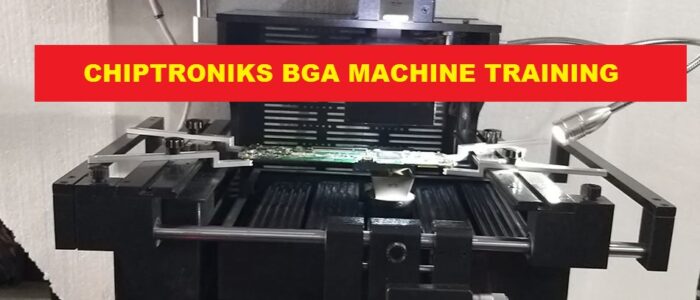
Our all trainers are Level 4 repairing engineers who can handle any type of repairing themselves plus they are aware of the ESD norms and so they can guide the precautionary steps needed for chip level repairing . CHIPTRONIKS posess advance equipments like : Jovy System BGA machines ,Xytronics Soldering station, JBC De-soldering stations , SMPS load tester ,Repower Cell test system,RAMCHECK PLUS MEMORY TESTER , OSCILLOSCOPE (IWATSU SS7840), Point Soldering manchine and many other speciL TOOLS .
CHIPTRONIKS has also developed manuals  for all repairing the motherboards , monitors , laptops , smps . These all manuals are all practical based . Our manuals are even used by many companies .
So I think joining CHIPTRONIKS will  fulfill your dream of becoming a chip level engineer .